
Data Deletion Instructions
Last updated: September 1, 2026
At OneUpFeed, you have full control over your data — including the option to delete individual posts or your entire account, at any time, directly from within the app. No request form or waiting period is required.
Section 1 — Deleting a Specific Post
If you want to remove a specific post that OneUpFeed published on your behalf, you can delete it directly from the Posts or Calendar page:
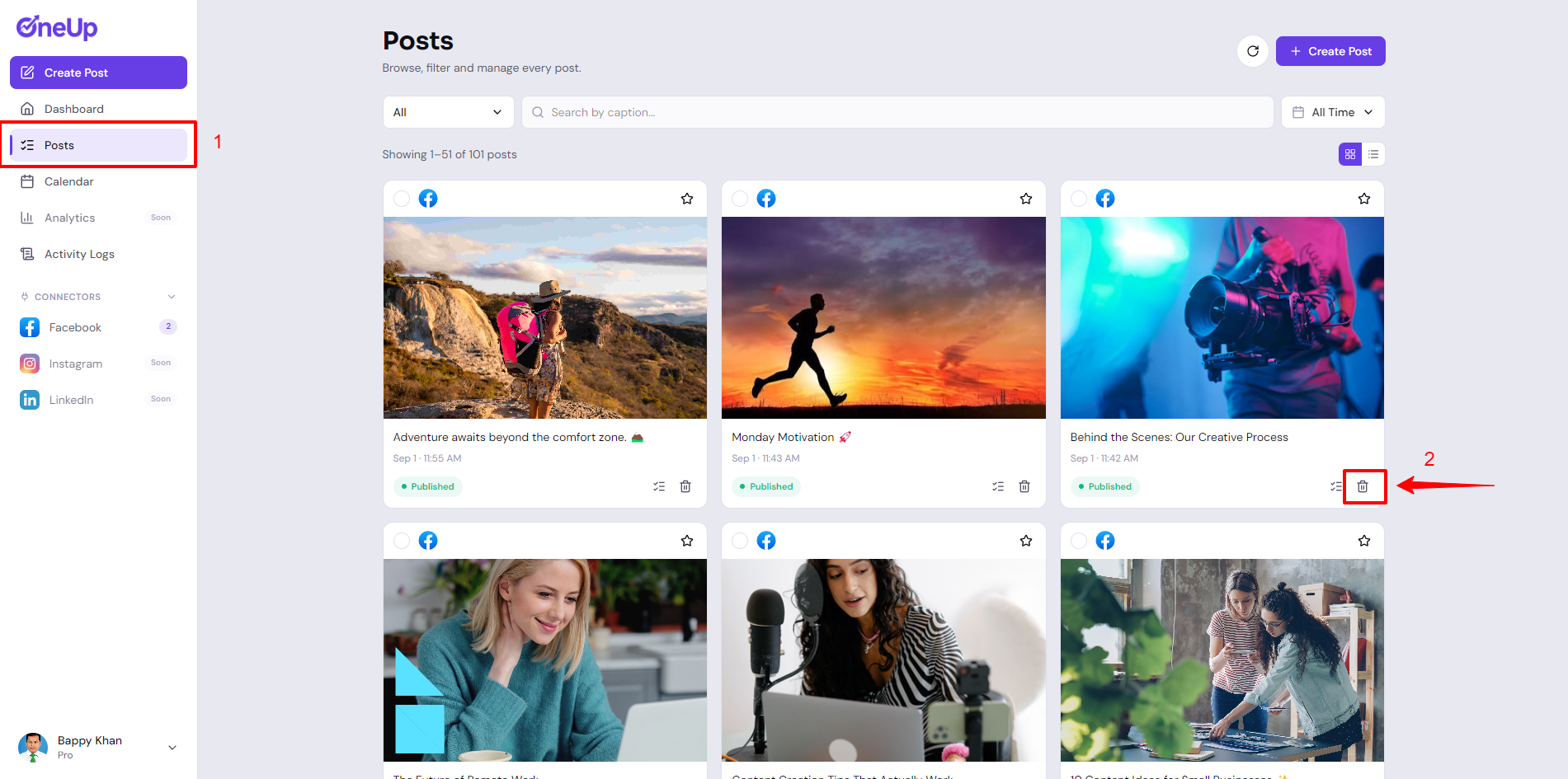
- 1. Go to Posts or Calendar and locate the post you want to remove.
- 2. Click the delete (bin) icon on the post.
- 3. Choose one of the following options:
- Delete from Everywhere — removes the post from your connected Facebook Page(s), from OneUpFeed, and from our storage.
- Delete from Account — removes the post only from your connected Facebook Page(s); it stays saved in OneUpFeed.
- Delete from OneUpFeed — removes the post only from OneUpFeed; it remains live on your Facebook Page.
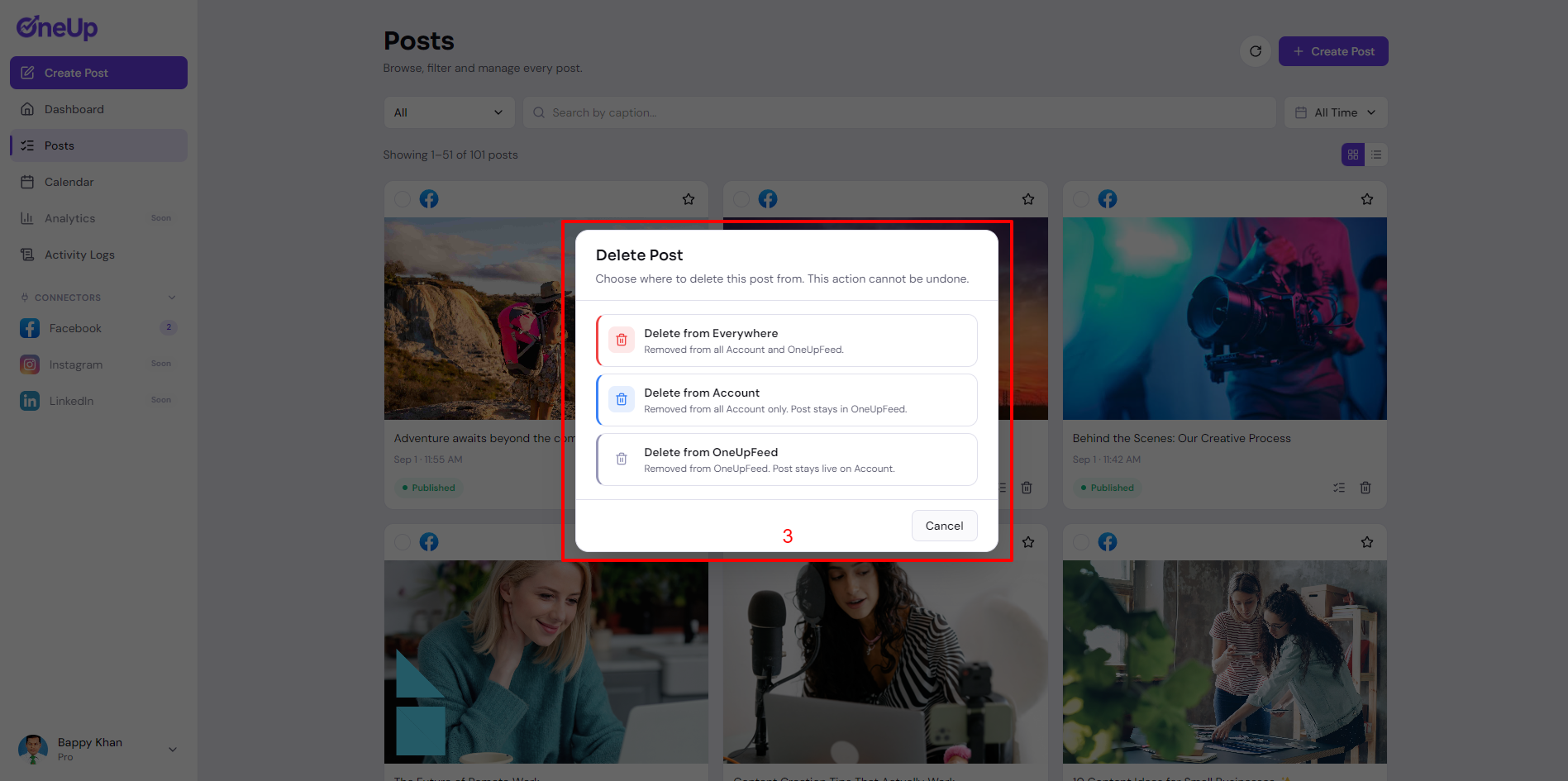
- 4. Confirm the action — this cannot be undone.
Section 2 — Disconnecting a Facebook Page/Account
If you want OneUpFeed to stop accessing a specific Facebook Page:
- 1. Go to Connectors → Facebook.
- 2. Find the connected Page you want to remove.
- 3. Click Disconnect.
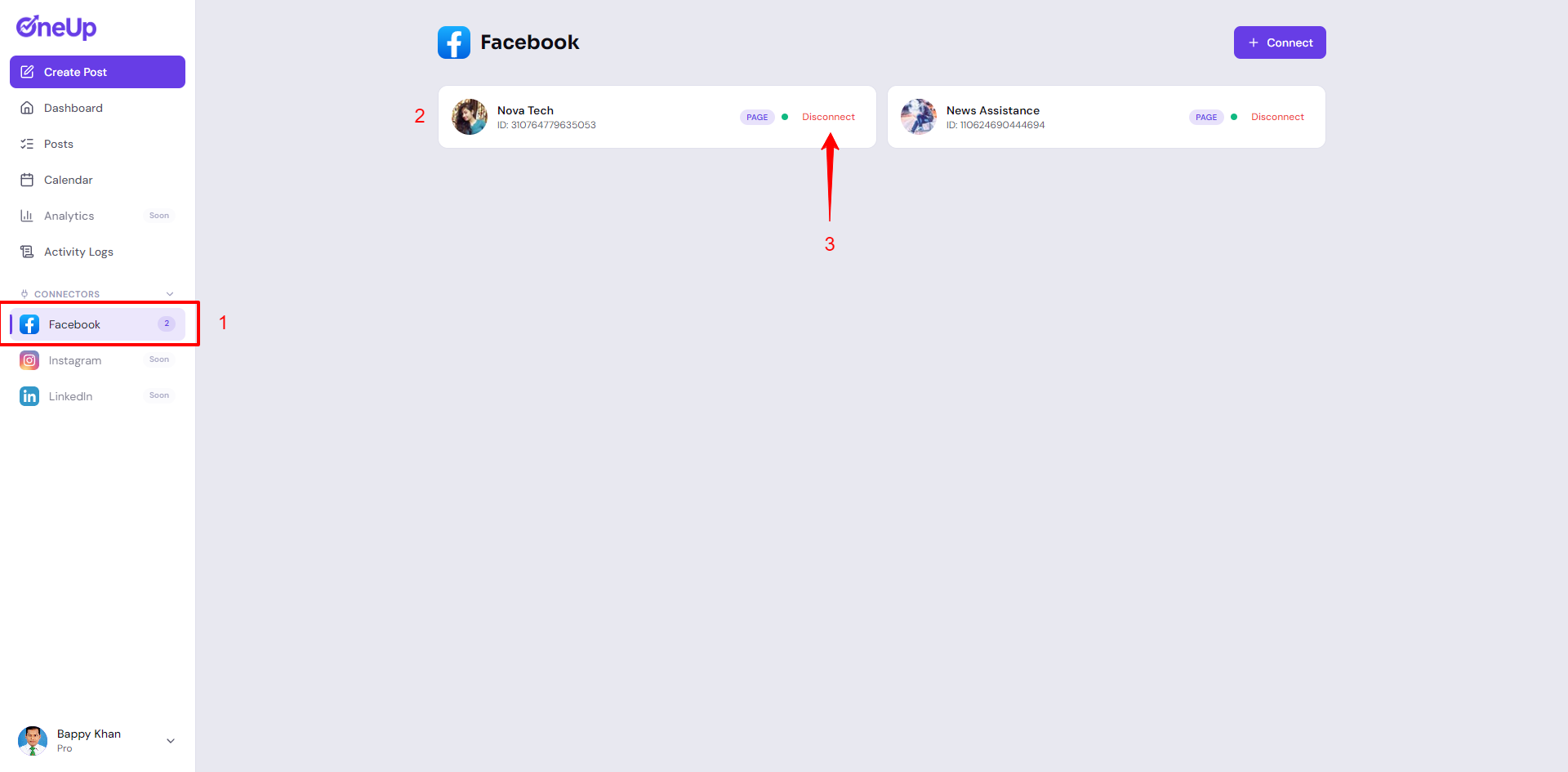
This immediately revokes OneUpFeed's access to that Page and removes the stored access token. Your previously published posts and activity history for that account remain visible in OneUpFeed unless you delete them separately or delete your full account (see below).
Section 3 — Deleting Your Entire Account and All Data
If you want to permanently delete your OneUpFeed account and all associated data:
- 1. Log in to your OneUpFeed account.
- 2. Go to Settings → Danger Zone.
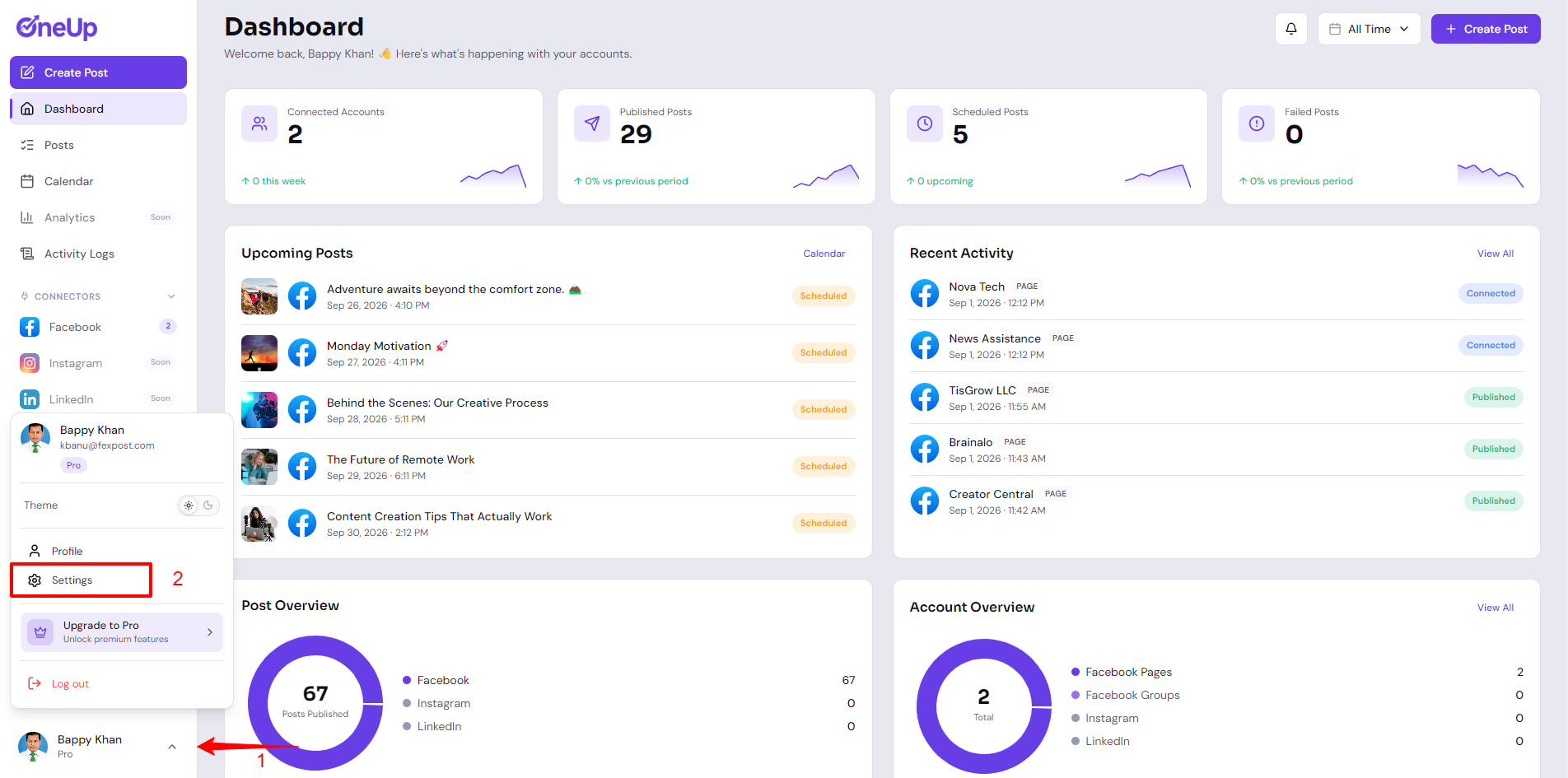
- 3. Under Delete My Account, type "DELETE" to confirm and enter your password.
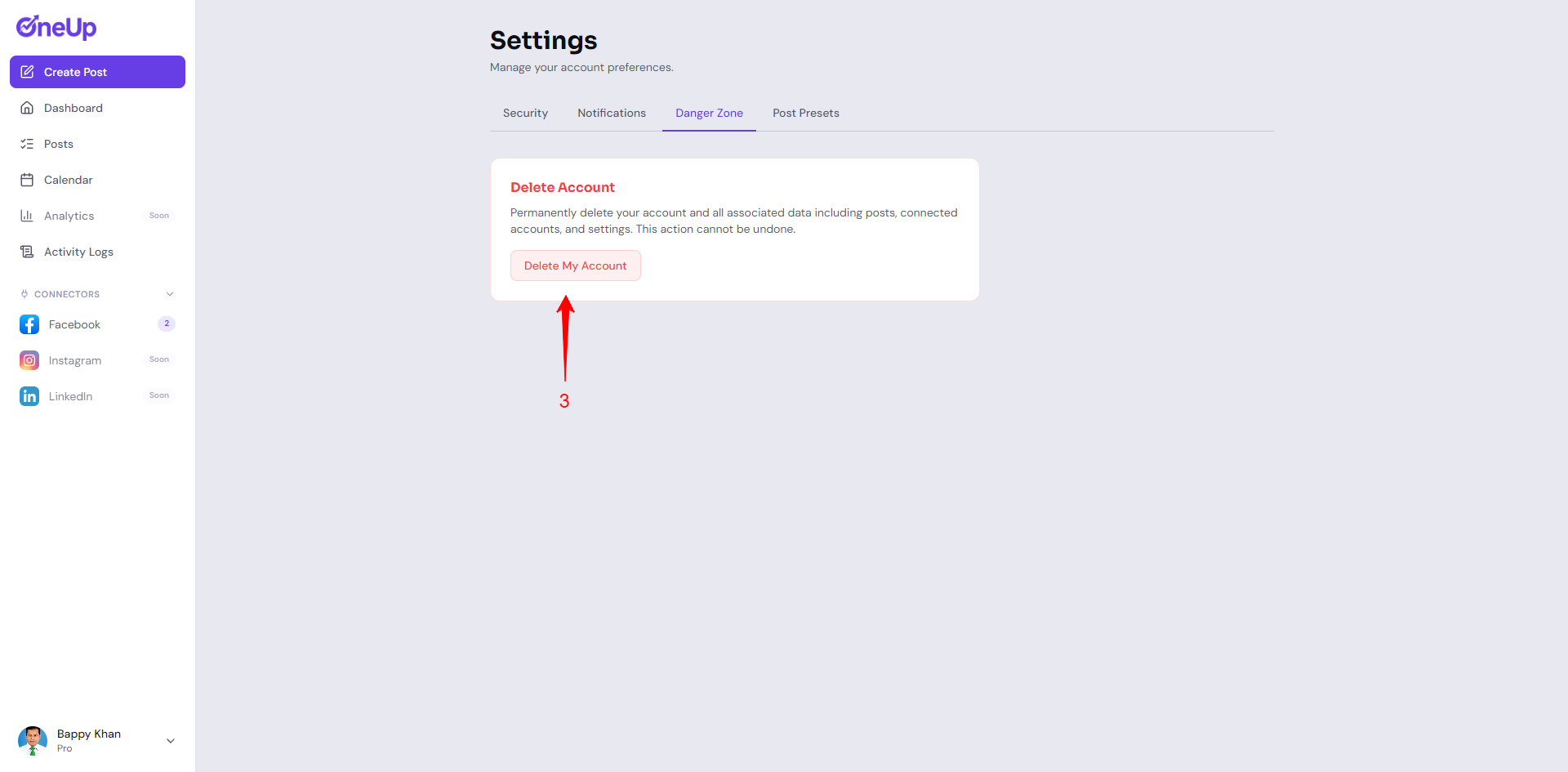
- 4. Click Delete Permanently.
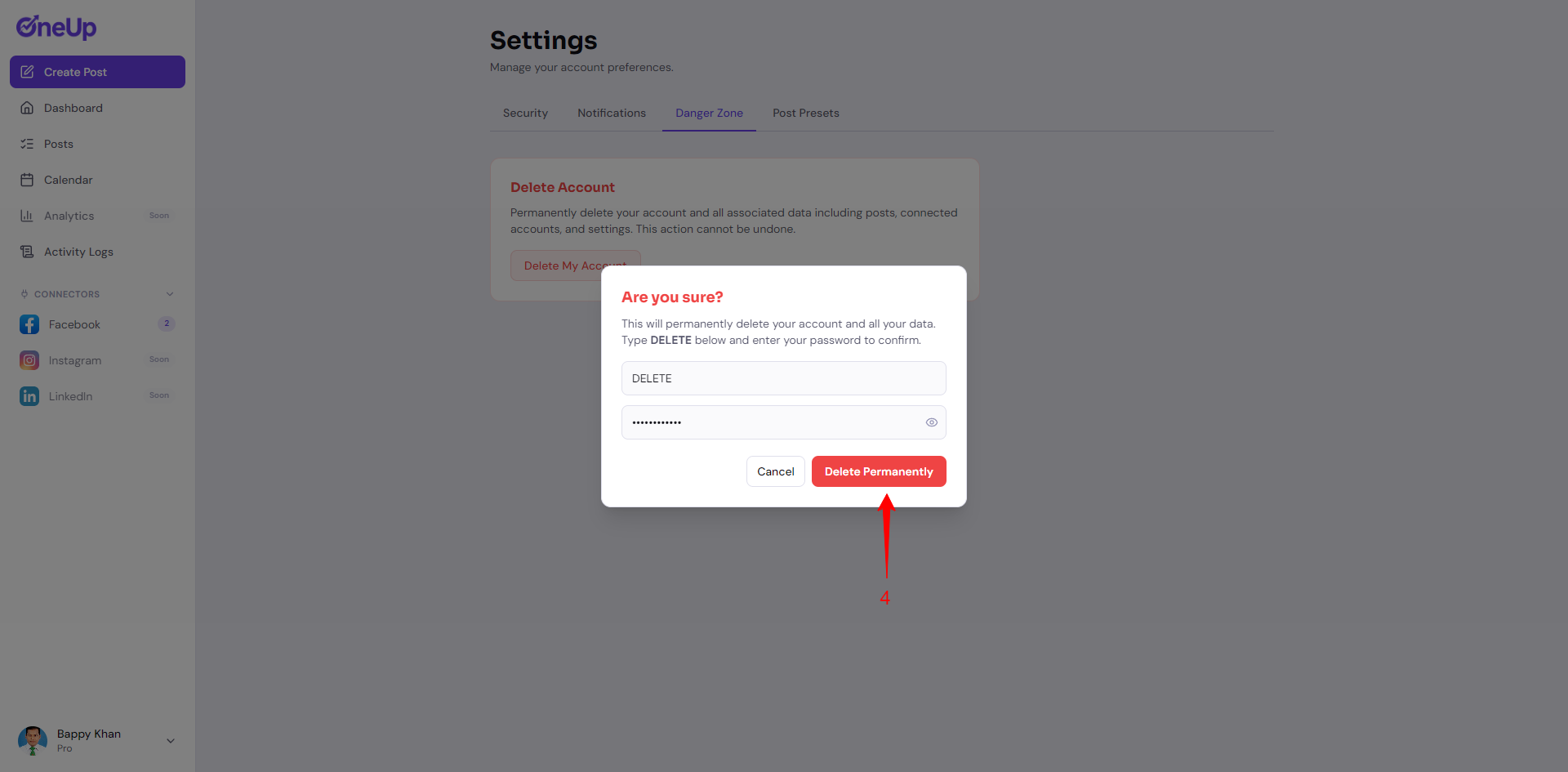
This will permanently and immediately delete:
- Your profile information
- All your posts, drafts, and scheduled posts
- All connected social media account records
- Your activity logs
- All uploaded media files
This action is irreversible. OneUpFeed does not retain a backup of deleted account data. Note: this only removes data from OneUpFeed's systems — it does not revoke or delete anything directly from Facebook's own systems on your behalf beyond what was explicitly published through OneUpFeed (see Section 1 for removing individual published posts from Facebook).
Section 4 — Alternative: Request Deletion by Email
If you're unable to log in or prefer to request deletion manually, email us at hello@oneupfeed.com with the subject line "Data Deletion Request" from your registered email address. We will process your request and permanently delete your account and associated data within 7 business days.